Is Core i3-5005U slow? 2026 limits, upgrade call, N100 comparison

How to increase integrated GPU memory

About the Author
Sesera editorial account organizes laptop, mini PC, smartphone, and gadget buying guides so readers can check the important points before buying.
If you want more integrated GPU memory, look in BIOS/UEFI first, not in Windows Settings. On Intel you may find DVMT or Graphics Memory. On AMD you may find UMA Frame Buffer Size.
Not every PC lets you change it. On many OEM notebooks from NEC, Fujitsu, Dynabook, Lenovo, HP, and Dell, the menu is hidden. In that case it is more realistic to leave Auto allocation alone, or add RAM so shared memory has room, than to hunt for a hidden switch.
Before you change BIOS, note Dedicated GPU memory and Shared GPU memory in Task Manager. The rest of this page is the Intel and AMD menu names, what to do when the item is missing, and when adding RAM is the better move.
Check this first
Before you change anything, note the GPU memory numbers you have now. On Windows 11:
- Open Task Manager with Ctrl + Shift + Esc
- Open Performance
- Select GPU
- Read Dedicated GPU memory and Shared GPU memory
Dedicated memory alone is a weak signal for an iGPU. An iGPU does not carry its own VRAM the way a graphics card does. It borrows system RAM. Dedicated GPU memory can look small while the machine still uses shared GPU memory when it needs it.
Do not change the value just to make a number bigger. Useful reasons to try: a game reports VRAM shortage, textures hitch while loading, or BIOS actually shows a clear control.
An integrated GPU lives in the CPU. Intel UHD Graphics, Intel Iris Xe, Intel Arc Graphics on the CPU, and AMD Radeon Graphics are in this group.
A discrete graphics card has its own VRAM. An iGPU uses system memory (RAM) for display and 3D work. What BIOS/UEFI usually lets you set is how much RAM is reserved for the GPU from the start.
If a 16GB PC reserves 2GB for the GPU, Windows and apps get that much less free RAM. That is rarely a problem when RAM is plentiful. On an 8GB PC, a large reserve can make the browser and Office feel slow.
How to raise the allocation on Intel iGPU
On Intel UHD Graphics or Iris Xe PCs, BIOS/UEFI may list DVMT items. Names vary. Look for:
- DVMT Pre-Allocated
- DVMT Total Gfx Mem
- Graphics Memory
- Integrated Graphics Configuration
- iGPU Memory
The usual flow:
- Save open files and restart
- At boot, press F2, Delete, Esc, or F10 to enter BIOS/UEFI
- Open menus near Advanced, Chipset, Graphics, or Display
- Find DVMT Pre-Allocated or Graphics Memory
- Pick Auto, 128MB, 256MB, 512MB, 1GB, or 2GB
- Use Save and Exit and restart
You do not need a huge value first. For light games and video, Auto or 512MB to 1GB is often enough. If a game reports VRAM shortage, try 2GB. On 8GB RAM, treat a 2GB or larger reserve with care.
How to raise the allocation on AMD iGPU
On Ryzen with Radeon Graphics, look for UMA items. Even on stronger iGPUs such as Radeon 680M, 780M, and 890M, the label still depends on the machine.
- UMA Frame Buffer Size
- UMA Buffer Size
- Integrated Graphics
- iGPU Configuration
- UMA Game Optimized
The flow is almost the same as Intel.
- Restart and enter BIOS/UEFI
- Look in Advanced, AMD CBS, NBIO Common Options, or Graphics Configuration
- Open UMA Frame Buffer Size or a close name
- Pick Auto, 1GB, 2GB, or 4GB
- Save and restart
On 780M/890M-class gaming you may want 2GB to 4GB. That still depends on RAM. 2GB is easier on 16GB RAM, and 4GB is easier on 32GB. Do not lock 4GB on an 8GB PC.
This is the usual snag. You reach BIOS and there is no DVMT, UMA, or Graphics Memory item. That is common.
Consumer notebooks such as NEC LAVIE, Fujitsu FMV, Dynabook, Lenovo IdeaPad, HP Pavilion, and Dell Inspiron often expose only a short BIOS list, to cut support load and reduce accidents.
If the item is missing, check in this order:
- See if BIOS/UEFI can switch to Advanced Mode
- Search the maker’s manual for Graphics, UMA, or DVMT
- See if a BIOS update added the item
- If still missing, treat the PC as Auto-only
Hidden-BIOS key combos and unofficial tools exist online. Do not use them on a daily-driver PC. The chance of a no-boot is out of proportion to the usual gain.
Can Windows Settings or a driver raise it?
Short answer: Windows Settings alone almost never raises real iGPU memory allocation.
Advanced display settings and DirectX Diagnostic Tool show current reporting from the driver. They are not a control for how much RAM the iGPU reserves.
Guides also mention adding DedicatedSegmentSize in the registry. That can change a number some apps display. It does not reliably add usable GPU memory or speed. Treat it as a display check workaround, not a performance fix.
Driver updates still matter. Newer Intel or AMD graphics drivers can fix bugs and game compatibility. They still do not let you freely raise a fixed VRAM value.
When a higher allocation actually helps
A larger reserve helps when GPU memory shortage is the bottleneck.
- A game warns about VRAM
- Textures load slowly
- A light 3D game hitching for a moment
- You drive a high-resolution external monitor
If low FPS comes from the iGPU’s compute, more VRAM will not move the needle much. On iGPU gaming, dropping resolution, lowering quality, and turning off shadows or anti-aliasing often help more than the BIOS slider.
Even a lighter title such as Minecraft changes needs between Java Edition, shader packs, and high-res texture packs. If you play on an iGPU, check CPU generation, the iGPU name, and RAM size together so you can tell shortage from raw GPU speed.
How this relates to adding RAM
If you are thinking about iGPU allocation, look at total RAM too. The iGPU borrows RAM, so a small system RAM pool leaves both Windows and the GPU short.
A practical range:
| RAM size | How to think about allocation |
|---|---|
| 8GB | Auto, or about 512MB to 1GB. A large reserve often slows daily use |
| 16GB | 1GB to 2GB is easy to try. Light games often sit here |
| 32GB | 2GB to 4GB is easier to try. A candidate for Radeon 780M/890M gaming |
If you are still choosing 8GB vs 16GB, get 16GB before you fine-tune VRAM. On cheap PCs, 16GB RAM and a 512GB SSD often matter more in daily use than the CPU name.
Memory bandwidth also matters. An iGPU uses RAM as graphics memory, so dual-channel usually beats single-channel. Many notebooks cannot add RAM later, so check capacity and upgrade options before you buy.
If you will add RAM, check the PC model for empty slots, max capacity, DDR4 vs DDR5, and SODIMM vs soldered. DDR4 and DDR5 are not interchangeable. Buy a module only after the spec matches.
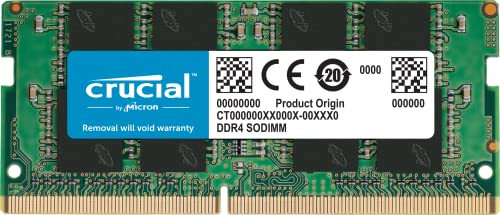
Crucial DDR4-3200 16GB SODIMM

Crucial DDR5-5600 16GB SODIMM
Cautions when you change BIOS
BIOS/UEFI sits below Windows. The wrong item can change boot order or security settings.
- Photograph the screen with your phone before you change it
- Do not touch items other than GPU memory
- If the PC feels slow after a large value, return to Auto
- On a work or school PC, ask the admin first
- Check the manual for warranty and support limits
To undo it, set the item back to Auto, Default, or the previous value, then Save and Exit. If Windows still boots, you can reverse it without rushing.
If you need more speed, rethink the PC
iGPU memory allocation only patches a shortage. It does not make the GPU itself faster.
For video and Office, you often never need this slider. For 4K video or an external monitor, check CPU, RAM, and video outputs together.
For games, a stronger iGPU such as Radeon 780M/890M, or a PC with a discrete GPU, moves the result more. Even a lighter title such as Genshin Impact still depends on quality settings and iGPU generation.
If the PC is stuck at 8GB with no upgrade path, BIOS has no UMA/DVMT item, or UHD/Iris Xe is already struggling in games, settings alone will not save it. If you stay on an iGPU, a 32GB Radeon 780M-class mini PC is a build where 2GB to 4GB allocation is easier to try.
If you want to judge CPU class instead of this slider, separate “N-series is enough,” “you need about Core i5,” and “Core Ultra is worth the jump.”
FAQ
How many GB should I set for iGPU memory?
If you are unsure, 1GB to 2GB is enough. Use 2GB for light games and photo work. Try 4GB on Radeon 780M/890M if you play heavier games. Locking 4GB on an 8GB PC can starve Windows.
What if BIOS/UEFI has no setting?
OEM notebooks often hide it. Do not force a change. Leave Windows and the driver on Auto. If you want a real gain, 16GB or more RAM usually helps more.
Can I raise VRAM from Windows Settings only?
Usually no. Changing the on-screen number or a registry value does not always add real shared memory or GPU speed. The setting that can matter is in BIOS/UEFI.
Will more VRAM make games smooth?
It can help a game that hitches from VRAM shortage. iGPU compute does not change. To raise FPS, lower resolution and quality first.
It can. The iGPU uses system RAM, so 16GB is easier than 8GB, and 32GB is easier than 16GB. Caps and the allocation method still depend on the model and BIOS.
Do Intel and AMD iGPUs use different steps?
The idea is the same. The labels differ. Intel often uses DVMT Pre-Allocated or Graphics Memory. AMD often uses UMA Frame Buffer Size or UMA Game Optimized.
How do I undo the change?
Set the BIOS/UEFI item back to Auto or the previous value, then Save and Exit. A phone photo of the screen before the change makes that easier.
Bottom line
To raise iGPU memory allocation, look in BIOS/UEFI for DVMT, Graphics Memory, or UMA Frame Buffer Size. If the item exists, try about 1GB to 2GB based on RAM size.
On OEM PCs with no item, leave Auto. Do not open hidden BIOS tools. If you want a better result, start with 16GB or more RAM, dual-channel, and in-game quality. The slider can help in some cases. It does not turn an iGPU into a different GPU.
This site uses affiliate links, including Amazon Associates.